

AI Workbench Tutorial: Choose Modes, Switch Models and Review Tasks
Follow a practical workbench checklist for model selection, inputs, quotes, task status and result review. Keep drafts and approved assets clear when switching tools.
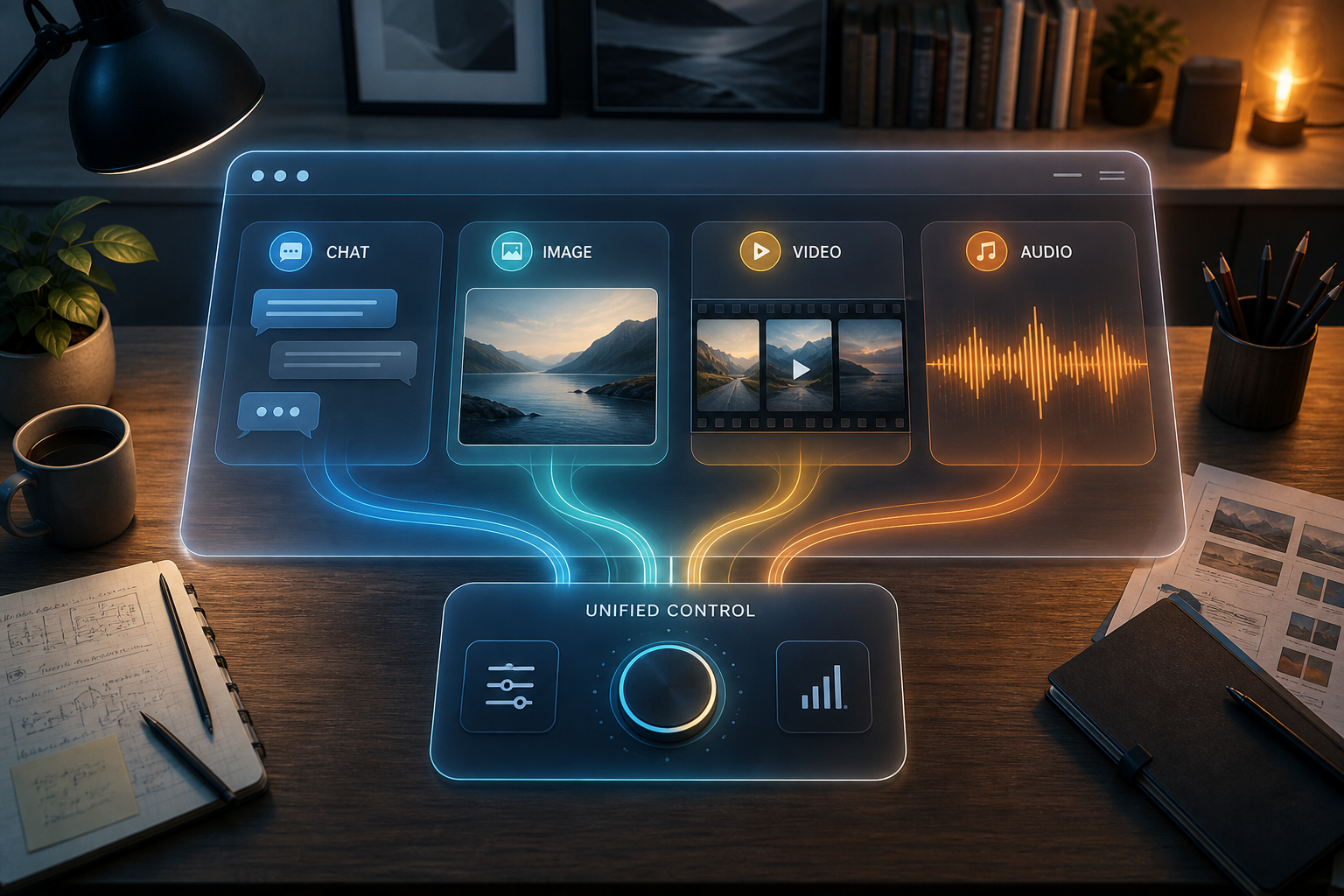
Use the workbench to configure one task at a time: choose a category and model, inspect the active mode, prepare inputs and review the returned result. This tutorial covers operating and switching tools. For choosing your first type of task, start with the browser AI introduction linked below.
Before submitting: verify the active selection
- Open the workbench directly or follow a product page’s usage link. Confirm the model name actually shown; the default selection can change.
- Choose the task category, model and supported mode. Search and selection controls may differ between chat and media tasks.
- Check required inputs, supported reference files and the available settings. Recheck them after switching, since a field or option in one mode may not exist in another.
- Review the current quote and account status before submitting. Reference prices are not a confirmed total; missing or stale pricing should be resolved before a paid request.
Switch models without losing the task brief
Keep an approved copy of the brief and references outside the task form. Current chat controls describe separate conversations and drafts per model; that does not mean another model has read the previous conversation. Supply the relevant approved context explicitly when handing work over.
During a running generation or chat response, model and category changes may be blocked. Wait for the task state to resolve before switching. Recheck the selected model, mode and inputs rather than assuming every field and uploaded asset transfers automatically.
| Stage | Save before switching | Verify after switching |
|---|---|---|
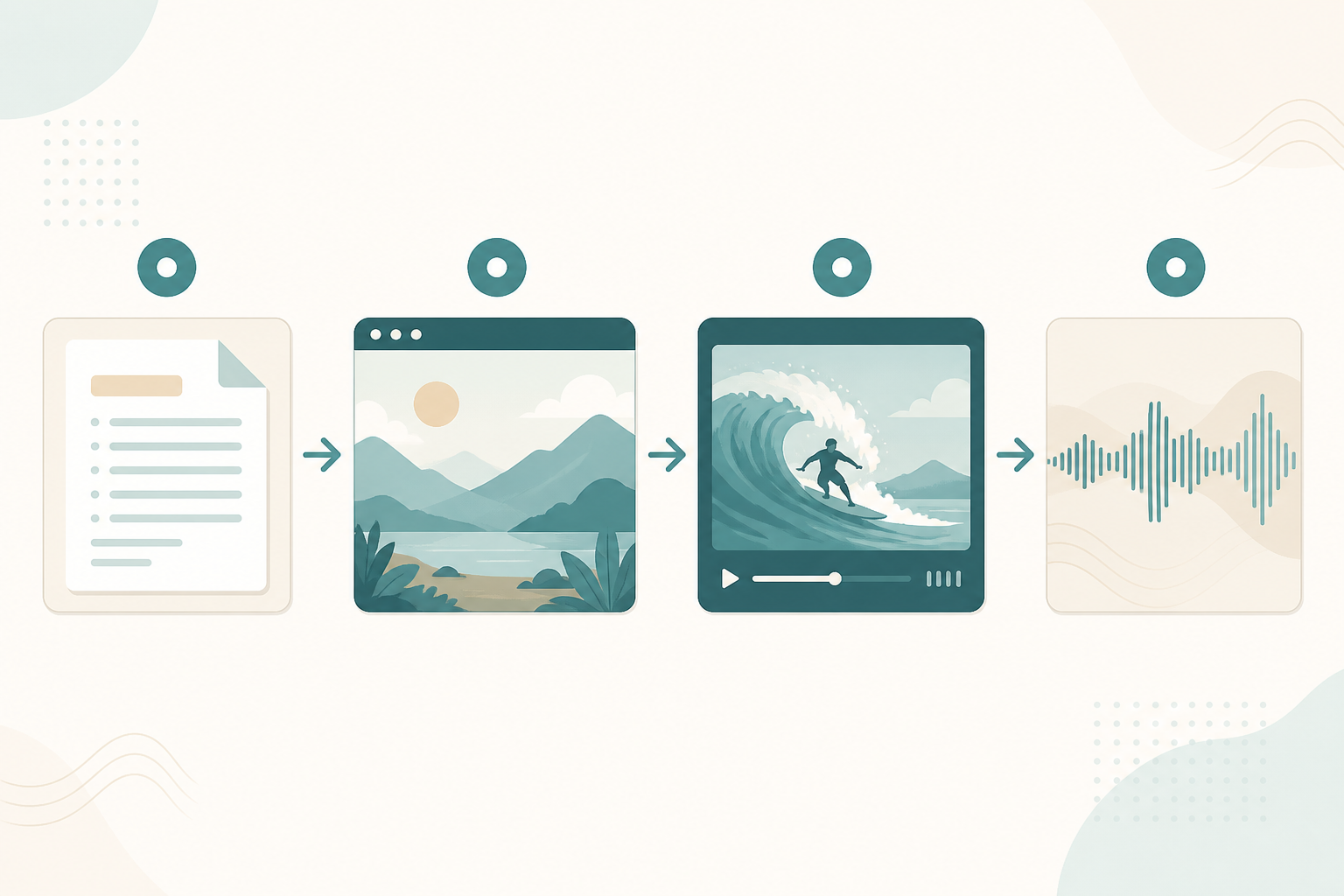
| Chat to drawing | Approved copy and visual brief | Image mode, references and aspect ratio |
| Drawing to video | Approved still and motion intent | Video input requirements and duration choices |
| Video to music | Rough cut, narration and music cues | Music mode and returned audio |
| Another model for the same task | Same sources and acceptance checklist | Relevant context is present; settings match where possible |
Prompt examples to adapt
These original examples describe intended results. Example durations, readable labels, no-vocals requests and parameter syntax such as —ar are not guarantees or universal controls. Use actual form settings where provided and inspect the output.
I need a 15-second beauty short: give 3 voiceover drafts, then a Midjourney still prompt and a 4-second Seedance test-clip prompt; audience women 25–35, sincere tone, no hard-sell slogans.
White-backdrop studio skincare bottle at 45°, soft light, sharp logo, commercial hero shot, no extra fingers or text watermarks.
--ar 1:1
Product bottle slowly rotates 20° horizontally, locked-off camera, soft studio light, subject stable, about 3–4 seconds, no subtitles or watermarks.
Soft electronic bed for beauty voiceover, 90 BPM, warm and clean, no vocals, loop-friendly, about 30 seconds.
Review task state and recover carefully
After submitting, check whether the task is running, finished or reporting an error. If a page or connection fails, first inspect the existing task or available history before sending another request. Do not assume a missing preview means that no task was created or that another submission cannot incur a charge.
Use the current account interface to inspect available records and usage. Save approved downloads and task identifiers when available; an account record is not a substitute for your final asset archive. Error details and task status should guide recovery rather than repeated blind retries.
Three practical recipes
A: One controlled task
Choose a small non-sensitive brief, submit in one mode and check the result against a short acceptance list. Record the selected settings and actual usage shown.
B: Compare two models on the same brief
Keep sources, constraints and review criteria fixed. Compare errors, revisions and total effort, not a presumed ranking of DeepSeek, GPT, Claude, Gemini or Grok.
C: Hand assets to the next tool
Approve copy before generating a still, approve the still before a video task, then audition music under the edit. Copy, download or upload approved material as needed and assemble the result in an editor. Switching categories is not automatic production or publishing.
Check the result, not just the success status
Verify source facts in text, visible copy and product identity in images, motion continuity in video and narration clarity in an audio mix. Completion time depends on queueing, mode and retries; this guide does not promise a 10-, 30- or 60-minute delivery. No paid generation or authenticated task-recovery test was run for this revision.
Products and detailed tutorials
- Account
- DeepSeek V4 Flash
- Midjourney Image
- Nano Banana 2
- Seedance 2.0
- Kling 3.0 Turbo
- Google Veo 3.1
- Suno 5.5
- Browser AI introduction
- online content pipeline
- AI drawing models comparison
- AI video models comparison
- Midjourney online art direction
- unified workbench
- Pricing
- GPT 5.6 Sol
- Claude Sonnet 5
- Google Gemini 3.5 Flash
- Grok 4.5
- GPT Image 2
- models list
- Suno BGM guide